
100% Free • No Sign Up Required
Printer Test Page
Print. Diagnose. Fix.
Free printer test pages to check print quality, colors, alignment, and performance. Instantly print or download printer test page PDF for all major printer brands.
Popular Printer Test Pages
Choose a test page to check print quality, colors, alignment and more.
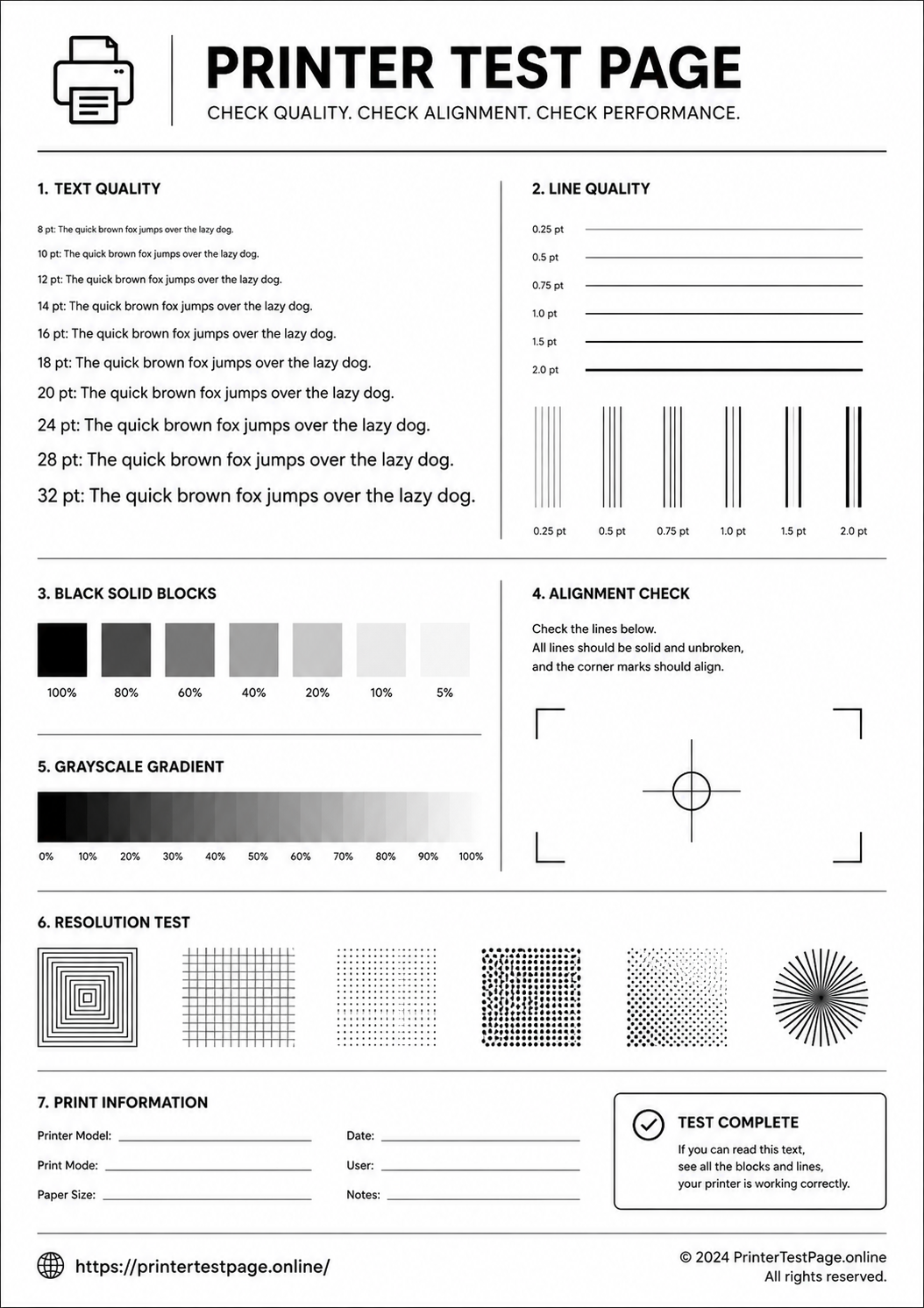
Black & White Test Page
Check black levels, sharpness and gray scale performance.
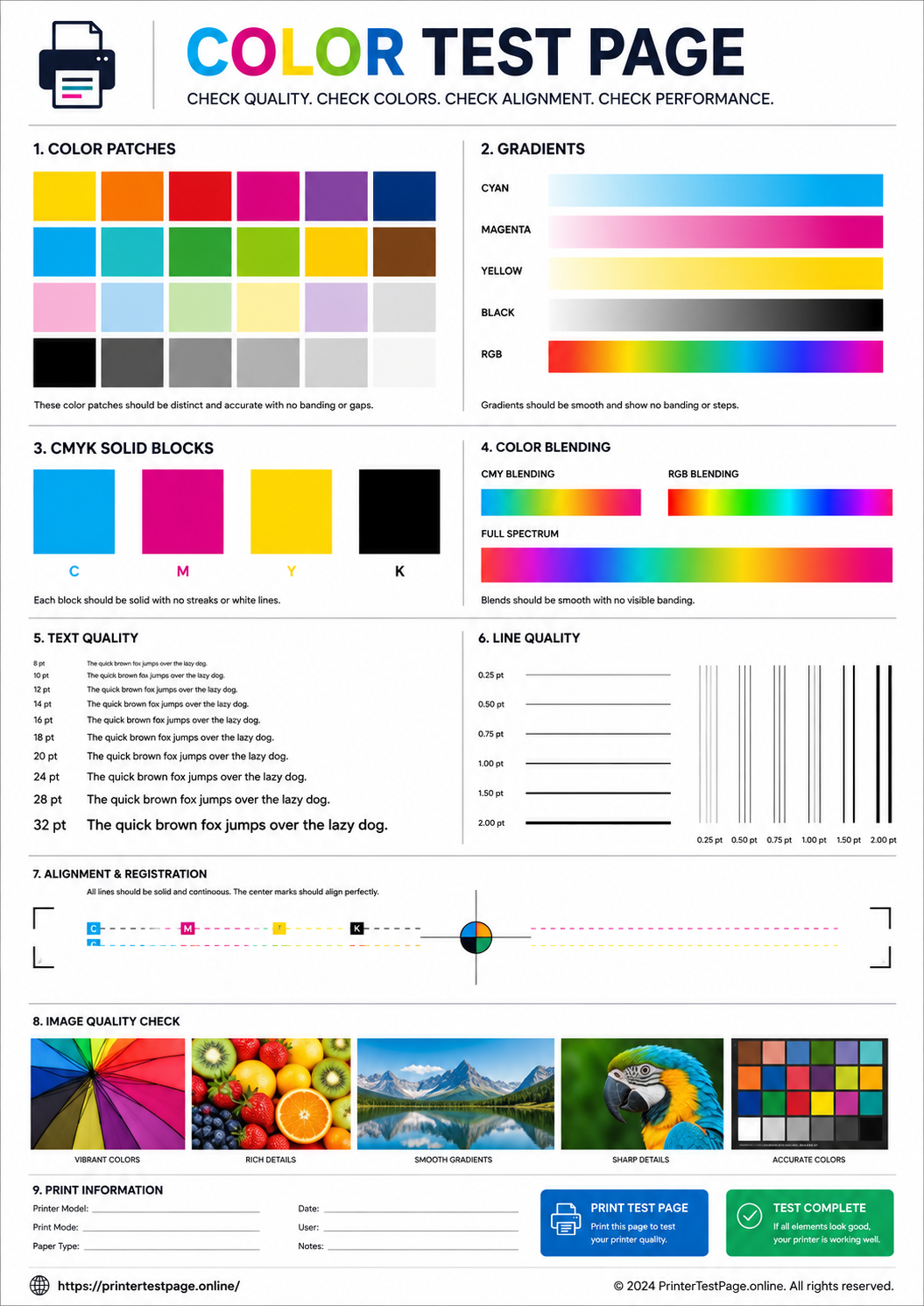
Color Test Page
Test basic colors and overall print quality.
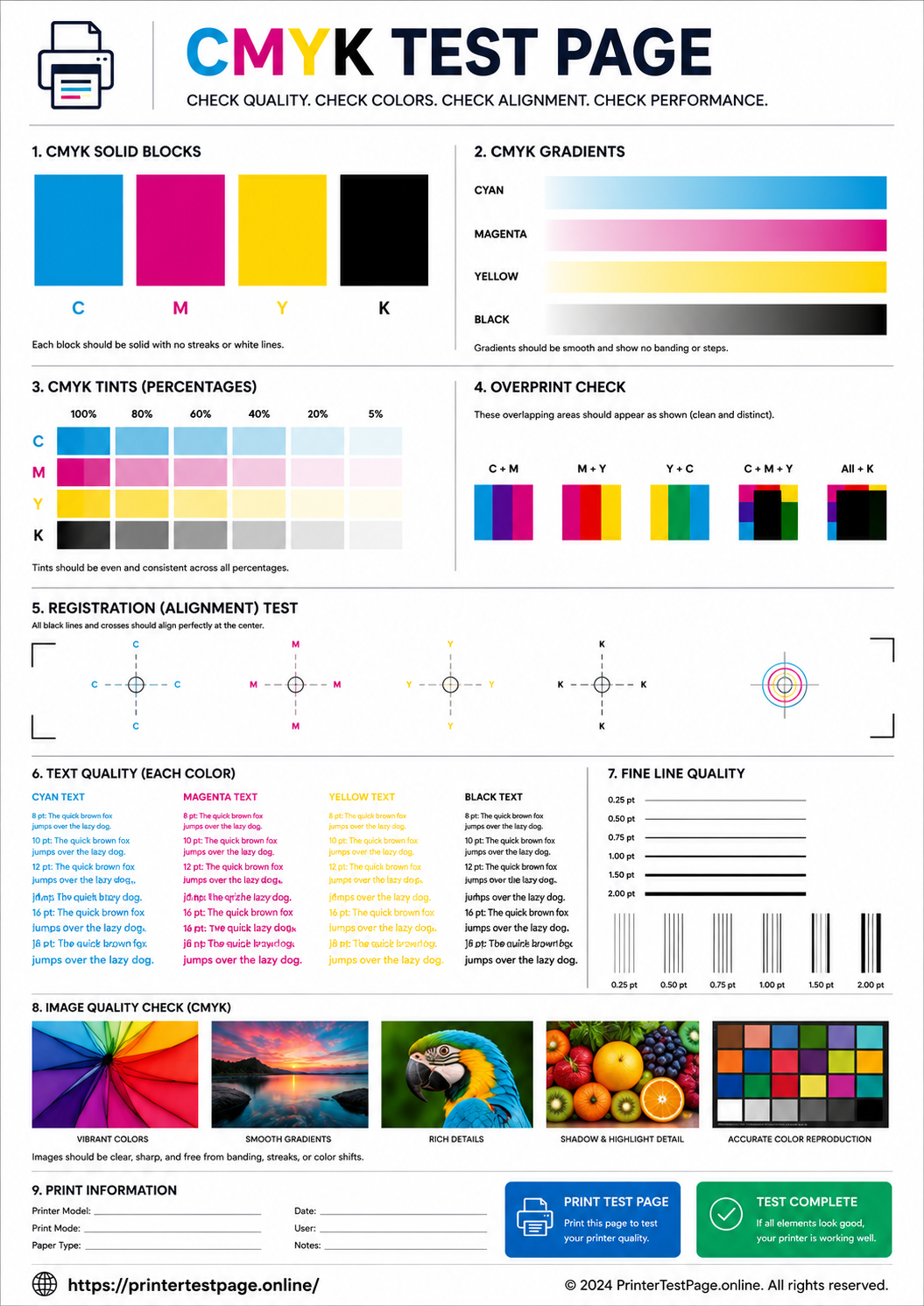
CMYK Test Page
Comprehensive test of all CMYK colors in one page.
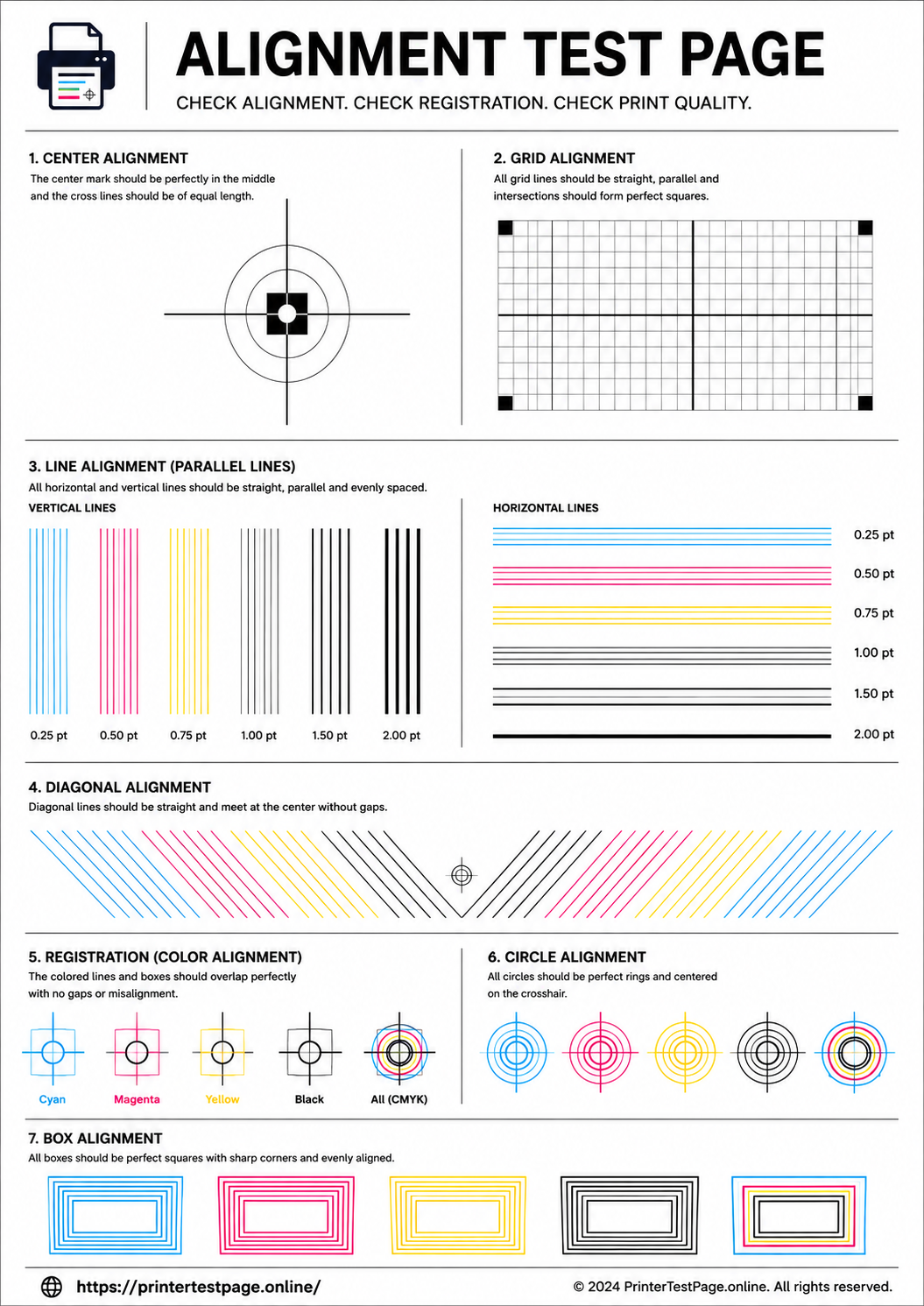
Alignment Test Page
Fix horizontal and vertical misalignment issues.
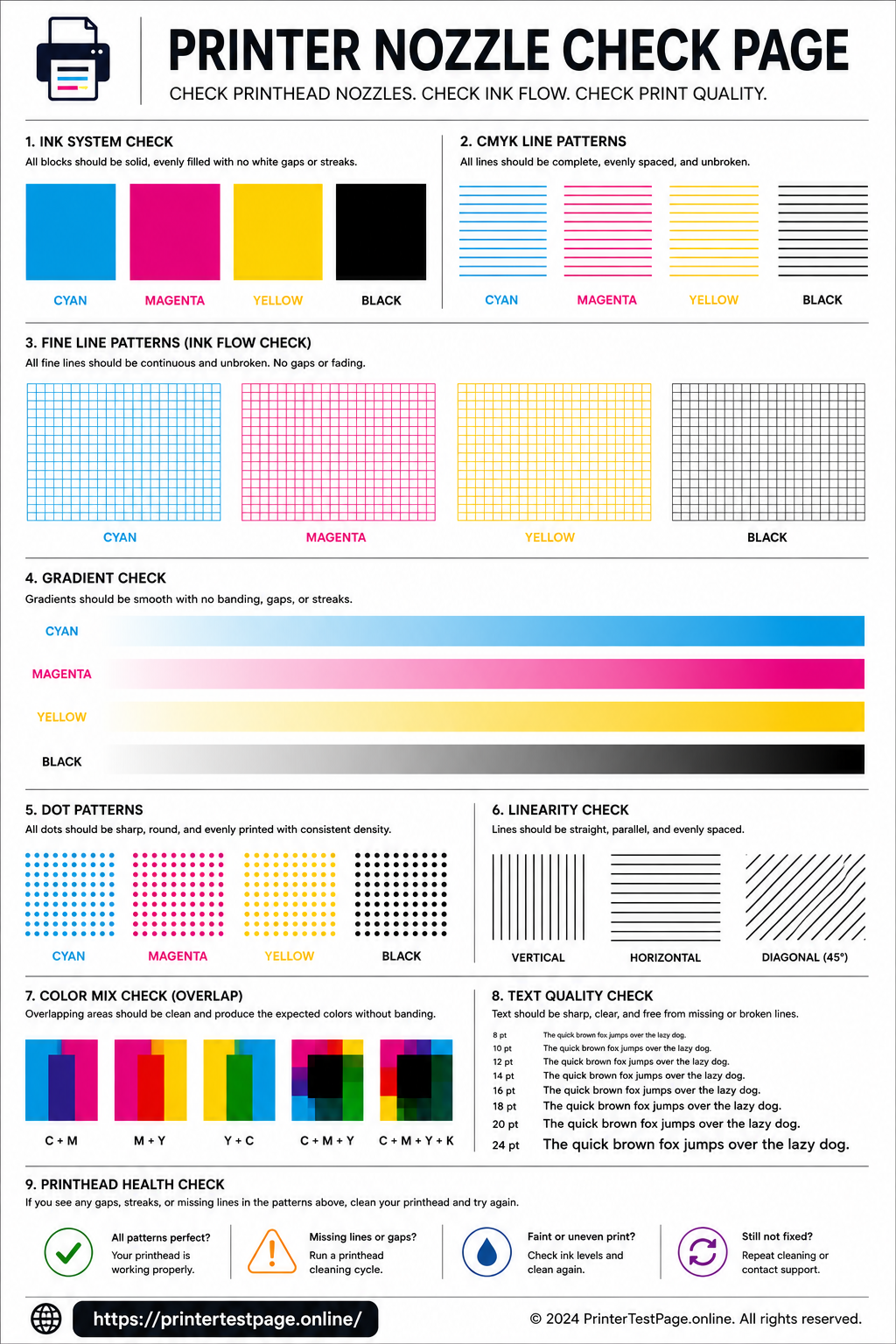
Nozzle Check Page
Detect clogged nozzles and missing lines.
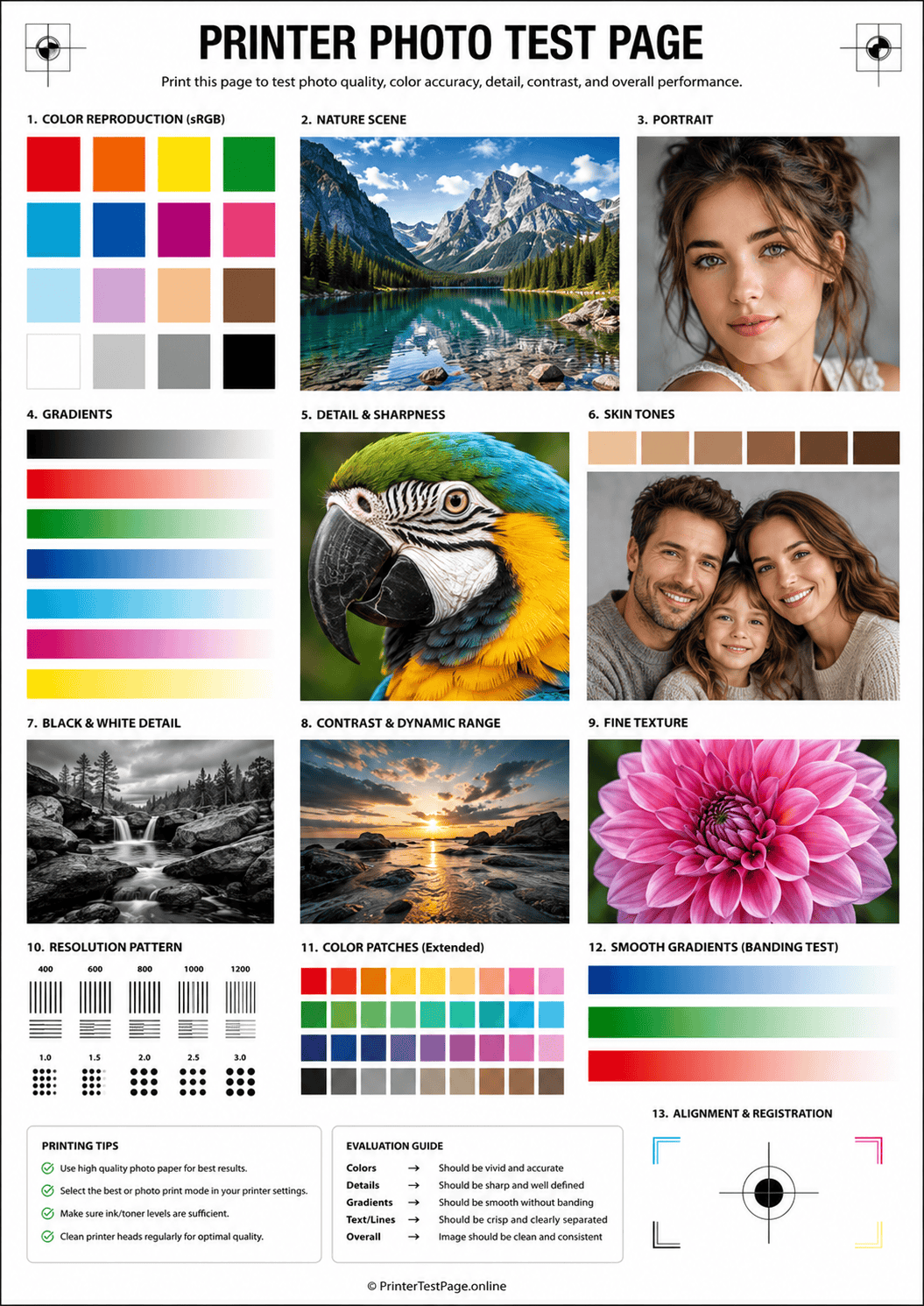
Photo Print Test
Test photo print quality and color accuracy.
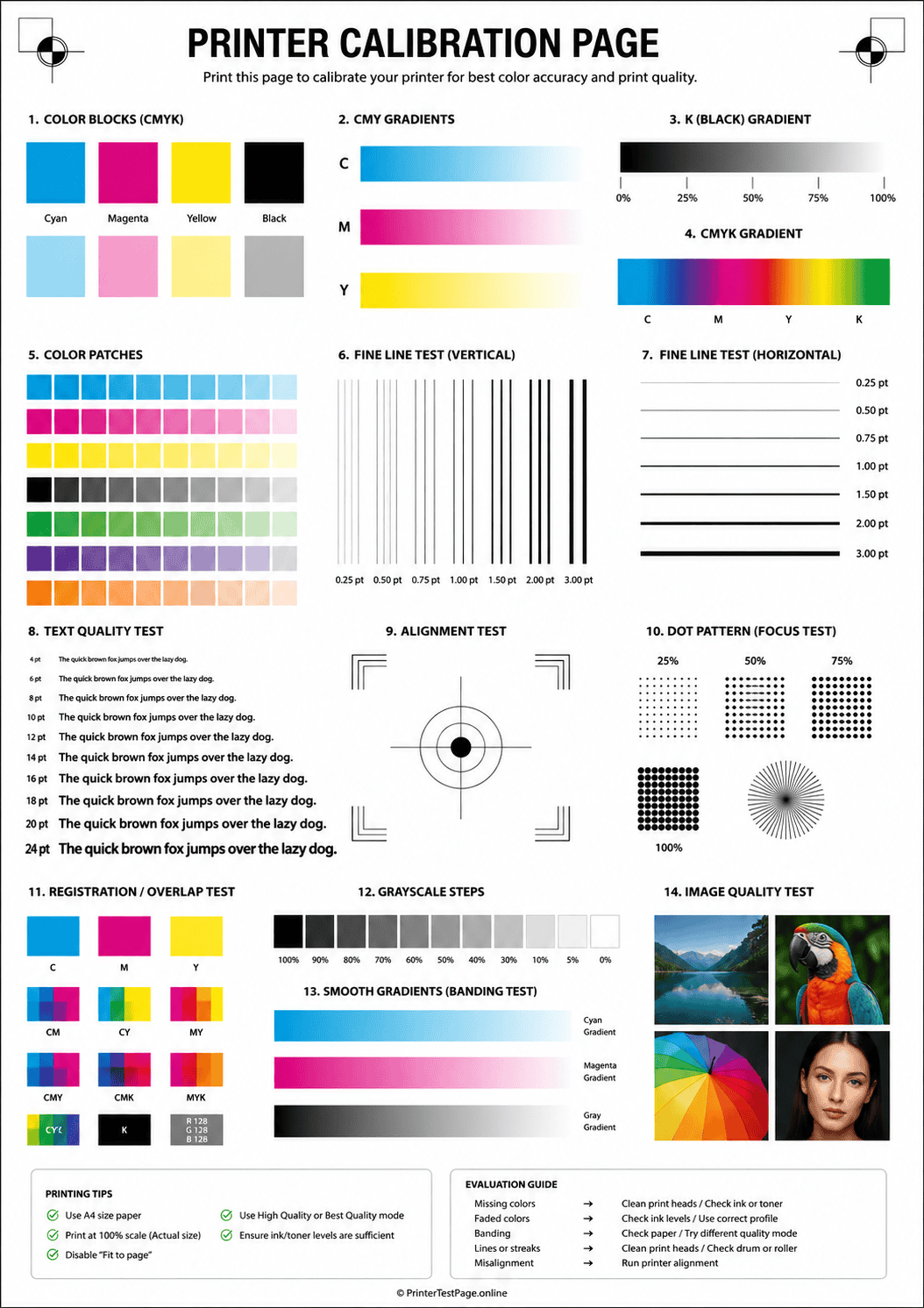
Printer Calibration Test Page
Calibrate your printer for accurate color and tone output.
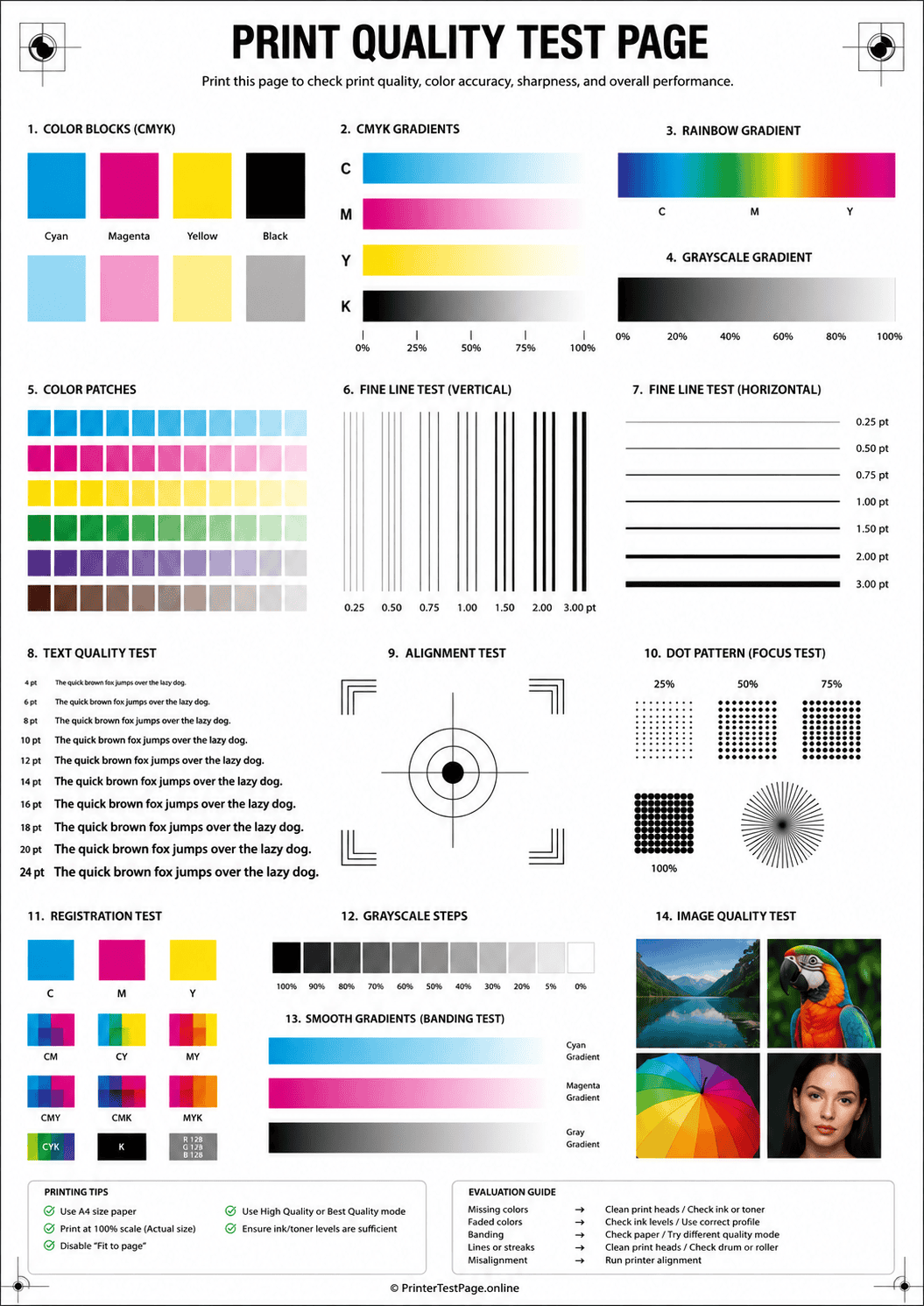
Print Quality Test Page
Evaluate overall print sharpness, density and clarity.
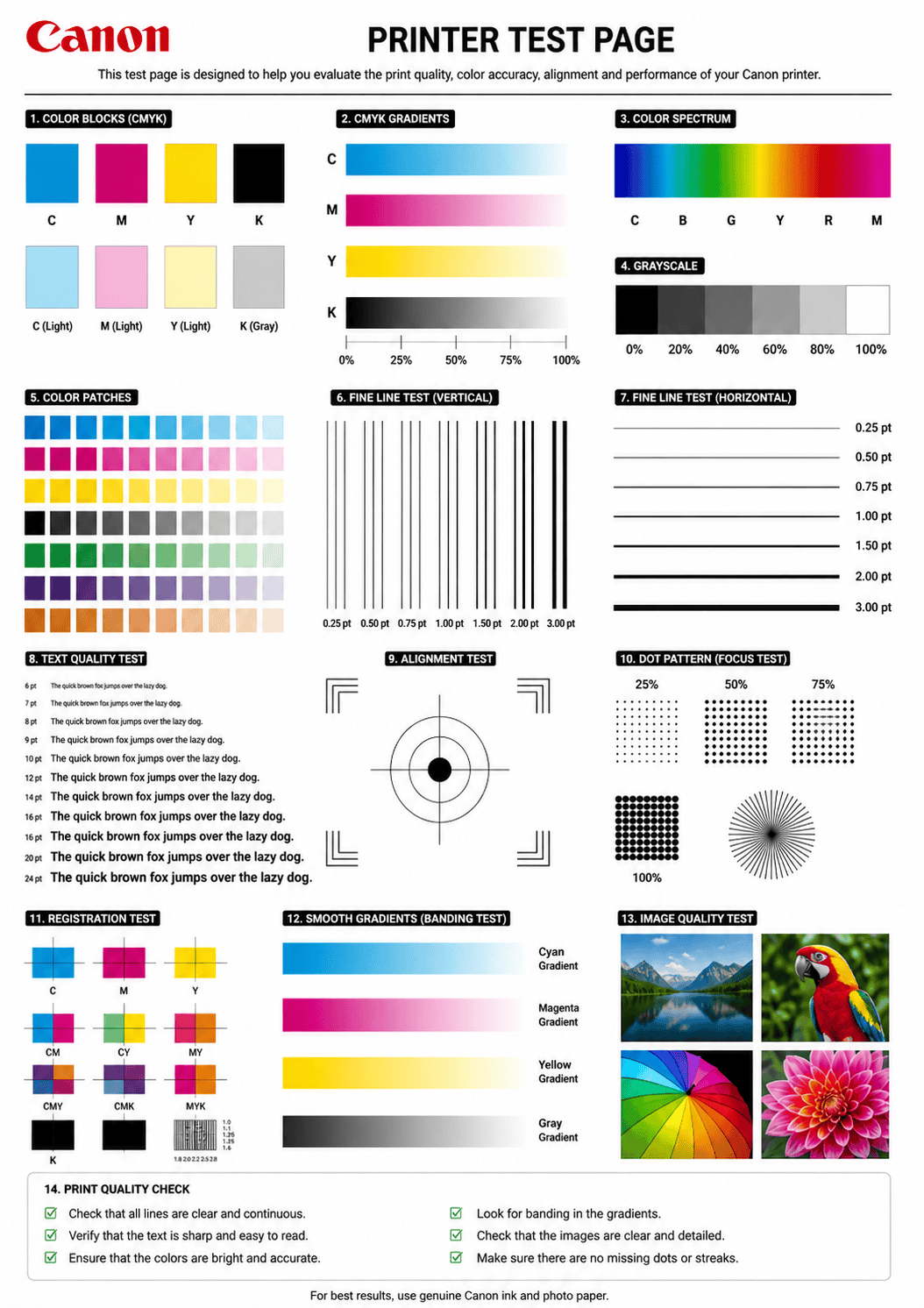
Canon Printer Test Page
Run a full diagnostic test on your Canon printer.
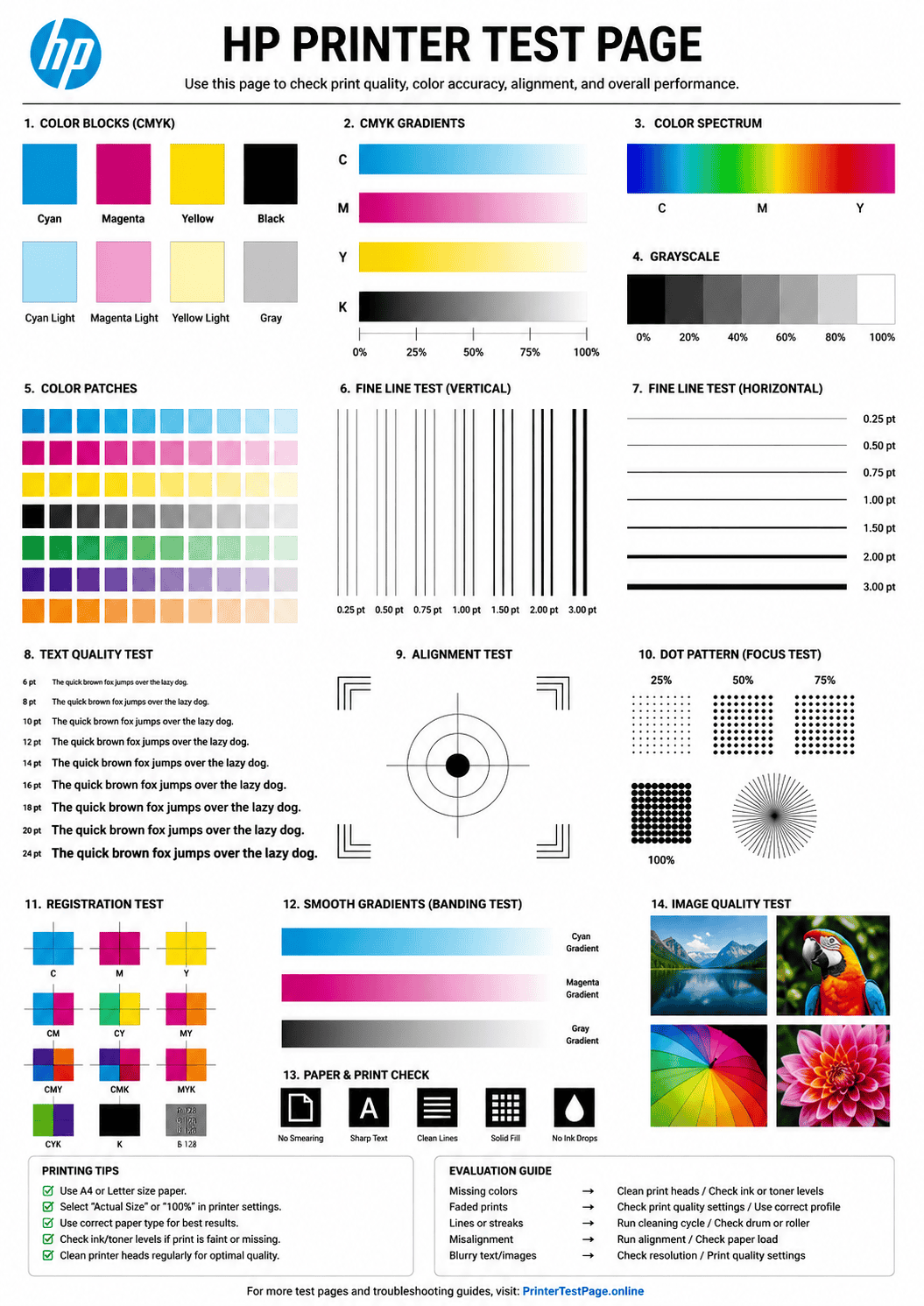
HP Printer Test Page
Test print quality and diagnose issues on your HP printer.
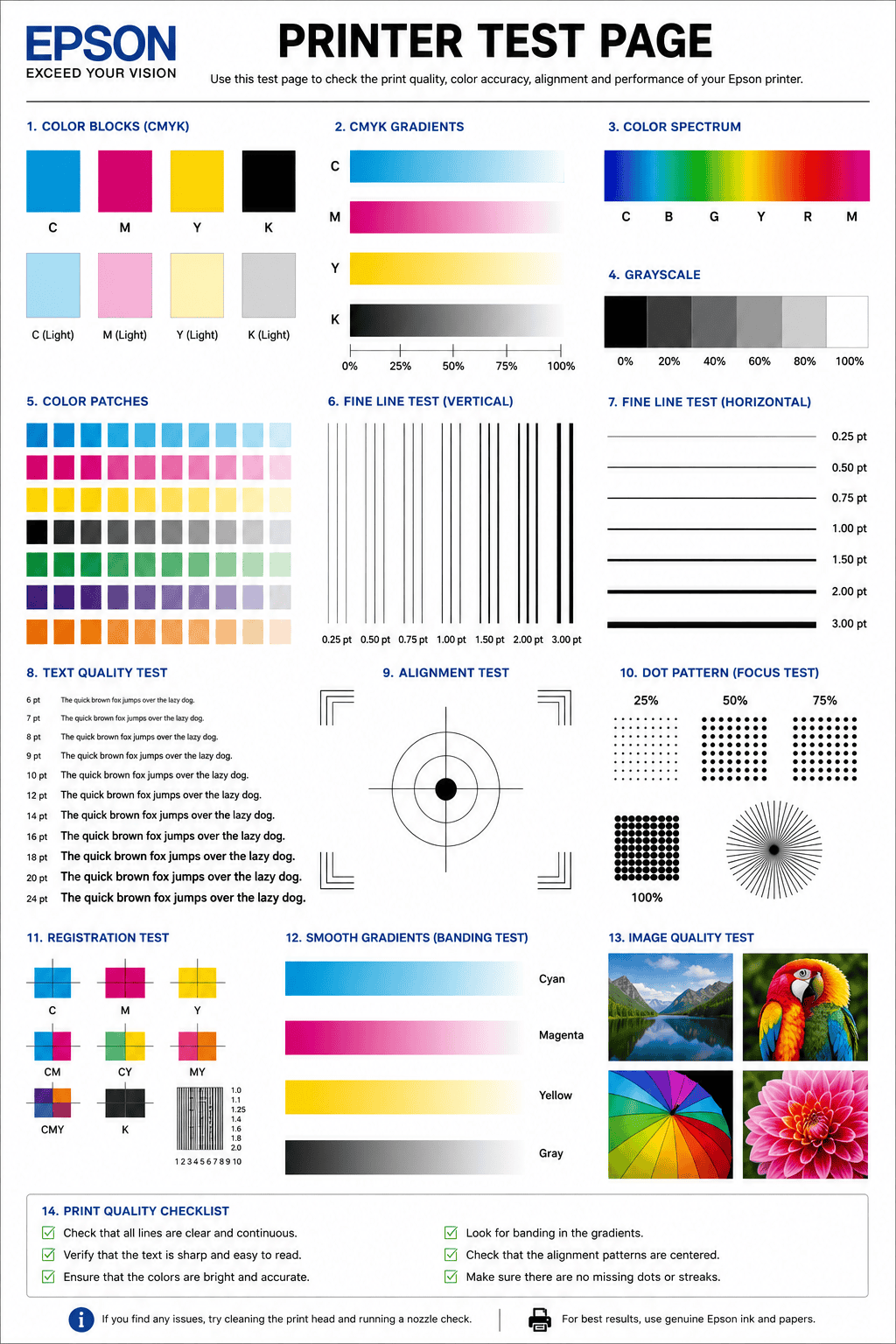
Epson Printer Test Page
Check nozzle health and color output on your Epson printer.
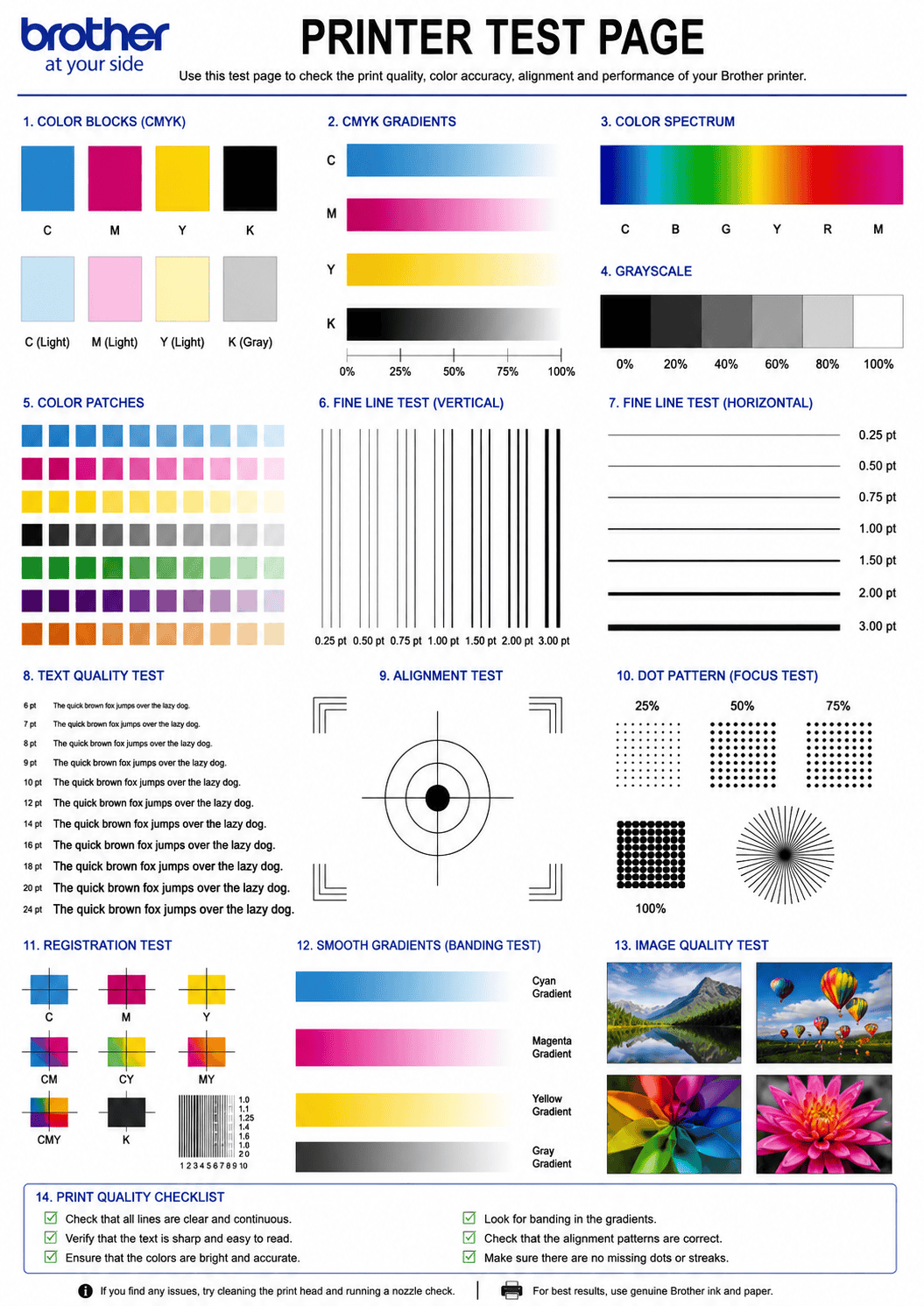
Brother Printer Test Page
Diagnose toner, drum and print quality on your Brother printer.
Quick Answer
To print a test page from Windows, go to Settings → Bluetooth & devices → Printers & scanners → your printer → Printer properties → Print Test Page.
On Mac, go to System Settings → Printers & Scanners → your printer → Printer Queue → Printer menu → Print Test Page.
Without a computer, use the hardware button method for your brand listed below. Your printer has a built-in self-check file saved inside itself — not on your computer, not in any app — so it prints the test page entirely on its own.
What Is a Printer Test Page and Why It Matters
Your printer has ink, paper is properly loaded after that you hit print and something comes out looking faded or streaky or just completely blank.
Most people at this point start guessing. Maybe the cartridge is empty or it just needs a restart. So they try random things and sometimes spend money on parts they don’t actually need.
A printer test page skips all of that. It’s a diagnostic page your printer produces about itself showing exactly what is working and what isn’t. It checks- Printer nozzle condition,ink levels, alignment, color accuracy and network status. All on one sheet.
Takes thirty seconds to print and it tells you more about your printer’s actual condition than most people figure out after an hour of troubleshooting.
On this site every test page is free and prints directly from your browser. No downloads. Nothing to install.
Inkjet Printers and Laser Printers Work Differently
Inkjet Printers
Inkjet printers use liquid ink and nozzles to put ink on paper. Those nozzles dry up fast when you don’t use your printer regularly. Sometimes just two weeks of sitting idle is enough. On an inkjet test page, the nozzle check pattern matters most — it shows you which nozzles blocked up and in which color.
Laser Printers
Laser printers work completely differently. They use toner and heat instead of liquid ink. Nothing dries out. But their drum unit — the part that transfers toner to paper — wears down over time. If you see the same smudge or mark repeating over and over down your page at the same spacing, the drum unit needs replacing. Not the toner cartridge.
Knowing which type of printer you have saves you from buying the wrong fix.
Why Print a Test Page Before Doing Anything Else?
Because it stops you from wasting time fixing the wrong thing.
Lots of people spend an hour reinstalling printer software when actually their ink cartridge just ran dry. Others go out and buy a new cartridge when actually the problem was a loose cable. A test page rules all that out in under a minute.
Here’s what your test page result tells you:
- Test page looks clean — Your printer works fine. Look at your computer, your Wi-Fi connection, or the file you were trying to print
- Test page looks bad — Your printer has an issue. The type of problem on your test page points you directly toward the fix
Also run a test page in these situations:
- You just put in a new ink cartridge — and want to confirm it’s working before printing something important
- Your printer sat unused for more than two weeks — dried ink might already be causing invisible damage
- Your printer software just updated — and prints suddenly look different
- You’re about to print something really important — and want to confirm everything works first
- Colors suddenly look wrong — and you’re not sure which cartridge to blame
Types of Printer Test Pages
Not every printer test page is the same. Each one checks different things inside your printer. So first know which test page is for what. Then print the right one for your problem.
Nozzle Check Test Page
This printer test page checks if your printer nozzles are blocked or not. When you print it you will see patterns of lines or dots on paper. If all lines are complete and clear — nozzles are fine. If some lines are missing or broken — that nozzle is blocked. Needs cleaning.
Print this first when your printer is giving faded or streaky output.
Color Test Page
The color printer test page tests your printer colors — Cyan, Magenta, Yellow, and Black. Each color in a separate block. You look at it and immediately see which color is weak or missing. If the red block is faded — red ink is low or finished. If blue is missing — blue cartridge has a problem.
Simple and fast way to check all your ink colors together.
Black and White Test Page
Only checks your black ink or black toner. Prints text and black blocks in different shades. If black text is coming light or faded this is the printer test page to print. It tells you immediately if black ink is low or the print head has a problem with black only.
Print Black and White Test Page →
Alignment Test Page
This printer test page checks if your print head is sitting in the correct position or not. When you print it you will see lines and patterns. If lines are straight and matching — alignment is correct. If lines look broken or shifted — alignment is off. Your printer has the option to fix this automatically after you see the result.
Print this when your text looks slightly blurry or shifted on page.
Grayscale Test Page
Grayscale printer test page prints black color in many different shades. From very light grey to very dark black. If you see all shades clearly and smoothly — black ink is working well. If some shades are missing or look patchy — ink is getting low or nozzle has partial blockage.
Good page to check quality of your black ink before important printing.
Photo Quality Test Page
This printer test page prints a high quality color image with gradients and skin tones and sharp details. If you are planning to print photos this page tells you if your printer is ready for photo quality output. You will immediately see if colors are accurate or if quality is good enough.
Print Photo Quality Test Page →
Band Test Page
This printer test page shows you if your printer has a banding problem. Banding means horizontal lines or stripes appearing across your printed page. If bands are visible on this test page — print head needs cleaning or alignment needs adjustment.
Laser and Toner Test Page
This one is specifically for laser printers. Not for inkjet. It checks toner coverage, print density, and overall laser print quality. If you have a Brother or HP laser printer and output is faded or patchy — print this printer test page first.
So these are all different printer test pages, each one for a specific problem. Do not just randomly print any page. Look at your problem first then match it with the right test page. Print it. Then you will know exactly what is wrong.
How to Print a Printer Test Page From Any Device
Printing a printer test page is straightforward but the steps are different depending on what device you are using. Here is how to do it on each one.
Print a Test Page from Windows 10 and Windows 11
Windows makes this pretty easy. You do not need to open any document or file.
Click the Start menu and type Printers and Scanners in the search bar.
Click on your printer from the list.
Select Manage and then click Printer Properties.
Go to the General tab and click Print Test Page at the bottom.
That is it. Windows sends a printer test page directly to your printer. The page shows basic printer info, driver details and confirms the printer is communicating properly with your computer. If nothing prints after clicking that button the issue is with the driver or connection, not the ink.
Print a Test Page from Mac
Mac handles this slightly differently but still simple enough.
Open System Settings and click Printers and Scanners.
Select your printer from the left side list.
Click Printer Queue or Open Print Queue.
Go to Printer in the top menu bar and select Print Test Page.
If you do not see the Print Test Page option in the menu your printer driver may not be fully installed. In that case download the latest driver directly from the printer manufacturer’s website and reinstall it. After that the option usually appears.
Print a Printer Test Page Directly from the Printer Buttons
This method is actually the most useful because you do not need a computer at all. Good for checking if printer hardware is working independently of any software or driver issues.
Most printers have a built-in printer test page option through the control panel buttons. Steps vary by brand but generally:
- HP printers — Hold the Cancel button and the Color Copy button together for three seconds. Some models use the Information button instead.
- Epson printers — Turn off the printer. Hold the paper feed button while turning it back on. Hold until the printer starts printing the nozzle check page.
- Canon printers — Hold the Resume or Stop button for five seconds while the printer is on. The printer prints a nozzle check page automatically.
- Brother printers — Press Menu, go to Print Reports, and select Printer Settings. The printer prints a configuration and printer test page.
Print a Printer Test Page from an Android Phone
Android can print wirelessly if the printer and phone are on the same WiFi network.
Go to Settings on your phone.
Search for Printing or find it under Connected Devices or General Management.
Tap your printer service — usually shows as your printer brand name or Default Print Service.
Tap the printer and look for a Print Test Page option.
Some Android versions show this option directly. Others require the printer’s own app instead — HP Smart, Epson iPrint, Canon PRINT, whichever matches your printer brand. These apps all have a test print or nozzle check option built in and they work reliably.
Print a Printer Test Page from iPhone or iPad
iPhones use AirPrint to connect to printers wirelessly. Your printer needs to support AirPrint for this to work. Most modern printers from HP, Canon, Epson and Brother do.
Make sure printer and iPhone are connected to the same WiFi network.
Open any document or photo in the Photos or Files app.
Tap the Share button and select Print.
Choose your printer and tap Print.
There is no dedicated printer test page button on iPhone the way there is on Windows. So the practical alternative is to use your printer brand’s app — HP Smart, Epson iPrint, Canon PRINT — they all support AirPrint and have a built-in test print or nozzle check you can run directly from the app.
Also you can always use this site directly on your phone browser and print any printer test page straight from here. Tap the print button on whichever test page you need and select your AirPrint printer. Works cleanly on both iPhone and Android.
Brand Specific Printer Test Pages — What Each One Shows and How to Print It
Every printer brand has its own built-in printer test page and they do not all show the same information. Knowing what your brand’s test page actually tells you saves a lot of guesswork.
HP Printer Test Page
HP’s printer test page is one of the more detailed ones. It shows ink levels for each cartridge, print quality data, total pages printed on that machine and cartridge information including whether it is a genuine HP cartridge or third party.
That last part matters because HP printers actively flag non-HP cartridges and sometimes reduce performance or show warnings when third party ink is detected. The printer test page will tell you if that is happening.
To print it open the HP Smart app on your phone or computer, select your printer, go to Printer Home Page or Printer Status and run the test from there. Alternatively hold the Information button on the printer itself — one page usually prints within a few seconds.
Need the full page? Visit our HP printer test page optimized for all HP models.
Epson Printer Test Page
Epson gives you two useful pages — the nozzle check page and the status sheet. They show different things so it is worth knowing which one you actually need.
Nozzle check prints a grid pattern showing all the nozzles firing. Any gaps in the pattern mean blocked nozzles. Status sheet shows ink levels, firmware version, network connection details and total print count.
To print nozzle check from the printer turn it off first, then hold the paper feed button while turning it back on. Hold it until it starts printing. For the status sheet open Epson printer utility on your computer and select Printer and Option Information.
Special note for EcoTank owners: The status sheet also shows the ink pad counter. Epson printers have an ink absorption pad inside that fills up over time and when it is full the printer stops working completely. Status sheet tells you how full it is. If it is near the limit you will need to reset it or take it to a service center before the printer locks up.
Get the full Epson printer test page optimized for EcoTank, WorkForce, and SureColor models.
Canon Printer Test Page
Canon’s printer test page combines nozzle check and alignment information on one sheet. It prints a colored grid pattern showing all nozzles plus alignment markers for each ink color.
To print it hold the Resume or Stop button on the printer for about five seconds while it is on. Printer starts printing automatically. You can also access it from the Canon IJ Printer Utility on your computer under Test Print.
Canon also tracks an ink dot counter internally. When it hits the limit the printer shows a support code error — usually 5B00 or 5B02. This means the waste ink absorber is full. Canon’s My Printer software can show you the current count and service centers can reset it.
Get the full Canon printer test page optimized for PIXMA, MAXIFY, and imageCLASS.
Brother Printer Test Page
Brother printers are mostly laser printers so their printer test page works differently. Instead of nozzle patterns you are looking at toner coverage, drum life remaining, page count and network settings.
To print it press Menu on the printer control panel, scroll to Print Reports and select Printer Settings. The printer generates a full configuration page in about ten seconds.
Brother’s configuration page also shows the drum unit life separately from the toner. Toner and drum are two different consumables on Brother printers and people often replace toner when the drum is actually the problem. Check both values on the printer test page before buying anything.
Get the full Brother printer test page optimized for MFC, HL, and DCP models.
Samsung Printer Test Page
Samsung’s laser printers print a configuration report that shows toner status, total page count, network information and current print settings like paper size and resolution defaults.
To print it, hold the Go button for about four seconds on most models. The printer prints the page automatically. Some newer Samsung models have a menu system on the panel — go to Setup, Reports and then Configuration Page.
Samsung was acquired by HP in 2017 so newer Samsung printer drivers and apps sometimes fall under the HP Smart ecosystem. If you have a newer Samsung laser printer and cannot find the printer test page option locally try the HP Smart app — it may recognize your printer and give you access from there.
Xerox Printer Test Page
Xerox printers are mostly used in offices rather than homes but they are common enough to include here. Xerox’s printer test page is called a Configuration Report and it shows toner levels, page count, IP address, active network settings and machine firmware version.
To print it press the Machine Status button on the control panel, go to Machine Information and select Print Configuration Report. On older models hold the Go button for about four seconds.
Xerox also has a Demo Page option which prints a full color sample page — useful for quickly checking overall print quality and color accuracy without needing to set up a test document yourself.
How to Read Your Printer Test Page Results
Most people print the printer test page and have no idea what they are actually looking at. So let me just walk through it practically.
Lines With Gaps
Look at the rows of printed lines on the page. All of them should be solid and complete. If you spot a gap somewhere in one of those lines a nozzle is blocked. Ink cannot push through that specific spot anymore — dried out most likely.
Go into printer settings under maintenance or tools and run a cleaning cycle. The printer flushes itself out. Then print the printer test page again and check. Gap gone — sorted. Still there? Run it one more time but stop at two cycles. Because each cleaning cycle burns through ink and running it five times back to back does not clear a stubborn blockage faster. It just drains the cartridge.
Faded or Missing Color Block
Four color boxes on the page. Cyan, magenta, yellow, black. All should look solid and clean. If one looks washed out or basically invisible that ink is low or finished. Open printer software, check levels, replace the cartridge if needed.
But sometimes levels show fine and one color is still missing on the printer test page. What is usually happening is the cartridge is sitting slightly loose in its slot so the connection is not clean. Pop it out, push it back in firmly until it clicks. And while it is out wipe the copper strip on the bottom with a dry cloth — that strip is how the printer communicates with the cartridge and even a little residue on it causes problems. Try printing again after that.
Text Looks Shifted or Blurry
The alignment page shows rows of lines with numbers underneath them. Each row is printed at a slightly different offset and your job is just to find which one looks most evenly lined up and straight. That number is the correct alignment setting. Enter it into printer settings and the printer adjusts its head position automatically. If alignment is off text comes out slightly crooked or blurry. You might not notice it on casual documents but small fonts make it very obvious very quickly.
Grayscale Page Looks Patchy
The grayscale printer test page should go smoothly from light gray on one end to deep solid black on the other. No gaps. No white spots. Just a clean even gradient.
Patchy or spotty areas in the middle shades mean partial nozzle blockage. Not completely blocked but enough to affect output. One cleaning cycle usually fixes it. Print the page again after and check. However if the whole page just looks too pale overall — not spotty, just generally too light everywhere — that is a different problem. That is just low ink. Nozzles are fine. Ink is nearly empty. Change the cartridge before it runs out mid-print on something important.
Horizontal Stripes Across the Page
Banding. Those horizontal lines running across your printed output. Happens when the print head is dirty or when ink is not flowing evenly because of a partial blockage or low ink level. Run a cleaning cycle and then print the band printer test page again. Stripes lighter — do one more clean and check. In most cases two cleaning cycles sort it out. Still fully striped after two cleans though — print head is probably worn out. Older printers that have done heavy printing for years just reach that point. At that stage either the head needs replacing or the printer itself might be near the end.
Network Page Showing a Strange IP Address
Nothing to do with ink. The network printer test page is purely about connection. It shows the printer’s IP address and WiFi status. If that IP starts with 169.254 the printer is not actually connected to the router. That is a self-assigned fallback address — basically what the printer gives itself when it fails to get a real one from the network.
Turn off the printer and the router. Wait about thirty seconds. Turn the router on first and let it fully boot up. Then turn the printer on and let it reconnect. Print the network page again and check if a proper IP appears now. And if the IP keeps randomly changing every few days and dropping the connection — go into router settings and assign the printer a fixed static IP. Once that is set the printer always uses the same address and the random disconnecting stops completely.
Printer Test Page Came Out Completely Blank
The blank page is the one that panics people the most but it is usually something simple.
New cartridges come with a small plastic tape over the nozzle area. Protects the ink during shipping. You peel it off before installing. If it is still on nothing prints — at all, regardless of how full the cartridge is. Pull the cartridge out and check the bottom. Tape still there — peel it off slowly and reinstall. Try printing again.
No tape but still blank — run two cleaning cycles with a ten minute gap between them. Print after each one and see if anything starts appearing. Still nothing — try a fresh original branded cartridge. Ink level sensors are not always accurate and sometimes the cartridge is actually empty even though it shows partially full on screen. A new cartridge confirms whether it is the cartridge or something deeper.
How to Fix Printer Problems Using Your Printer Test Page Results
So you have read the printer test page and you know what is wrong. Now let us actually fix it.
Missing Lines on Nozzle Check — Run a Cleaning Cycle
Go into printer settings and find the maintenance or tools section. Every major brand has it. Run the print head cleaning cycle once and then print the nozzle check printer test page again.
One or two lines missing? One cleaning cycle almost always sorts it. But if half the lines are gone run it twice with a ten minute gap between each cycle. Ink needs a moment to settle after cleaning before you test again. Still missing lines after two cycles means the blockage is deeper than a standard clean can reach. At that point try a manual cleaning — soak the print head in warm distilled water for about ten minutes, dry it gently, reinstall and test. If that still does not work the print head is probably done.
Faded Colors on Color Test Page — Check Cartridge First
Do not immediately buy a new cartridge. First pop the existing one out and push it back in firmly. Wipe the copper contacts on the bottom with a dry cloth. Reseat it properly and run the color printer test page again. A loose cartridge causes faded output more often than people realize.
Still faded after that — check ink levels through your printer software. If that color is low or empty replace the cartridge. And use an original branded cartridge if you can. Third party ones work sometimes but they cause more problems than people expect — wrong ink viscosity, chip mismatches, inconsistent flow.
Blank Areas on Black and White Test — Check Black Ink Separately
Black ink runs out faster than color because most people print mostly text. So even if color levels look fine black can be nearly empty. Check the black cartridge level specifically in your printer software. If it is low replace it. Also run a cleaning cycle targeted at the black nozzles if your printer allows selecting individual colors for cleaning. Some printers let you do this and it is more efficient than cleaning all nozzles together every time.
Misaligned Text on Alignment Page — Calibrate Through Printer Settings
Find the alignment or calibration option in printer settings. Most printers walk you through it automatically after you print the alignment printer test page. You enter the number of the row that looks most straight and the printer adjusts its head position. Do this on the paper type you print on most often. Because alignment can shift slightly between plain paper and photo paper due to paper thickness.
Streaks and Banding on Band Test Page — Clean and Check Head
Run a cleaning cycle first. Then print the band printer test page again. If streaks are lighter, do one more cycle and check again. Two cleaning cycles resolve most banding problems.
However if heavy banding continues after two cleans the print head may be worn. You can try a deeper manual clean — removing the head and soaking in warm distilled water for ten to fifteen minutes works sometimes on badly clogged heads. But if the printer is several years old and has printed heavily that head is probably just at the end of its life. Replacing the print head is an option on some printer models. On others the head is built into the body and you are basically looking at replacing the printer.
Blank Printer Test Page — Work Through It Step by Step
First check the tape. New cartridges have a plastic strip covering the nozzles. If it is still on nothing will ever print. Pull cartridge out, check the bottom, peel tape off if it is there, reinstall.
No tape but still blank — two cleaning cycles with gaps between them. Check after each one.
Still blank — try a fresh original cartridge. Ink sensors give wrong readings sometimes and the cartridge is actually empty even though the screen shows it is not. A new cartridge confirms whether it is the cartridge causing the problem or something else. Brand new cartridge also blank — print head damage. Not a home fix at this stage. Needs proper repair or the printer needs replacing depending on its age and the repair cost.
Network Page Showing Wrong IP — Reset and Stabilize Connection
If the IP address starts with 169.254 turn off the printer and router completely. Wait thirty seconds. Router on first — let it fully boot. Then printer on. Let it reconnect to WiFi on its own without rushing it. Print the network printer test page again.
And if connection keeps dropping every few days go into router admin settings and assign the printer a static IP address. Most routers let you do this under DHCP reservation — you tie the printer’s MAC address to a fixed IP so it always gets the same one. Takes five minutes to set up and completely stops the random disconnection issue.
How to Keep Your Printer Healthy
- Print something at least once a week on inkjet printers. Liquid ink dries inside nozzles fast. Even printing one boring page of plain text weekly keeps everything flowing and prevents the slow buildup that eventually causes streaks. HP, Canon, Epson, and Brother all say the same thing — weekly printing beats any cleaning product on the market.
- Always use plain white paper for printer test pages. Photo paper and glossy paper absorb ink differently. Running your test on anything other than regular office paper gives you misleading results.
- Don’t pull cartridges out unless you have to. Every time you remove one, the nozzles get exposed to air and start drying faster. If you must take one out briefly, rest it face-down on a slightly damp cloth and put it back as fast as possible.
- Replace cartridges before they fully run out. On Epson and Canon printers especially, running a cartridge all the way to empty pulls air into the ink lines. That air causes gaps and broken lines on your printer test page even after you put in a brand new cartridge. Replace cartridges when they run low — not bone dry.
- Match your quality settings to what you’re printing. Regular documents look fine at standard quality settings. Photos need higher quality settings turned on — check your printer’s instruction booklet for the best settings for photo paper specifically.
Browse by Printer Brand
How to Use a Printer Test Page
It’s simple and fast. Follow these steps:
Select the test page you need
Choose from black & white, color, CMYK, alignment, or nozzle check pages.
Click ‘Print Now’ or ‘Download PDF’
Print directly from your browser or download a high-quality PDF file.
Print on A4 or Letter size paper
Use standard plain white paper (75–90 gsm) for best results. Set print quality to high and scaling to 100%.
Check the results and fix the issues
Compare your output with the expected result and follow our diagnostic tool to fix issues.
What problem are you facing?
Get recommended test pages & solutions.
Print a Printer Test Page Before You Spend Money
Most printer problems are not as serious as they first appear. A blank page or faded output looks alarming but mostly it comes down to a blocked nozzle or a loose cartridge or a wrong setting somewhere.
That is exactly what a printer test page helps you figure out. One printed sheet and you know what is actually wrong instead of guessing and replacing parts randomly.
So before you spend money on a new cartridge or book a repair visit just print a printer test page first. Takes thirty seconds and it either shows you the exact problem or confirms the printer is fine and the issue is somewhere else entirely. Either way you have real information to work with instead of assumptions.
We have every printer test page you need right here on this site. Nozzle check. Color test. Alignment page. Grayscale. Network test. All of them are free and ready to print directly from your browser without downloading anything or creating an account.
Frequently Asked Questions
A printer test page shows the current health of your printer in one printed sheet. Depending on which test page you print it can show nozzle condition, ink or toner levels, print head alignment, color accuracy, network connection details, firmware version and total pages printed. It is basically a diagnostic report your printer produces about itself. Most people do not realize how much information is sitting on that one page.
Few common reasons for this. First check if the protective tape is still on the cartridge — new cartridges ship with a plastic strip covering the nozzles and if it is still on nothing will ever print regardless of how full the cartridge is. Second possibility is a completely clogged print head — ink is there but it cannot get through. Run a cleaning cycle from printer settings and test again. Third option is the ink level sensor giving a wrong reading and cartridge is actually empty even though screen shows it is not. Try a fresh original cartridge and see if that changes anything.
Every major printer brand lets you print a printer test page directly from the printer itself using button combinations. On HP hold the Information or Cancel button for a few seconds. On Epson turn the printer off then hold the paper feed button while turning it back on. On Canon hold the Resume or Stop button for about five seconds while printer is on. On Brother go to Print Reports through the menu on the control panel. Exact steps vary slightly by model so if these do not work just search your printer model number and “print test page without computer” and you will find the exact sequence in seconds.
Print a nozzle check printer test page. That is the fastest and most accurate way to know. The page prints a grid pattern of lines or dots and if any lines have gaps or are missing completely those specific nozzles are blocked. You can also notice signs in normal printing — streaky output, missing colors, faded patches, or horizontal white lines running across the page. But the nozzle check page tells you exactly which nozzles are affected rather than just guessing.
Honestly most people only need to print a printer test page when something seems wrong. But if you use your printer regularly it is not a bad idea to run a nozzle check once a month just to catch any partial blockage early before it gets worse. For printers that sit unused for weeks at a time, print a test page before any important job — nozzles dry out faster on idle printers and catching a blockage before a critical print saves a lot of frustration.
Yes. Printer test pages are built into the printer and cost nothing to access. They do use a small amount of ink or toner to print — usually less than a regular document page — but there is no software cost or subscription involved. On this site all printer test pages are also completely free to print directly from your browser without any signup or download required.
They check two completely different things. A nozzle check printer test page tests whether ink is actually coming out of the nozzles correctly — it shows you if any nozzles are blocked or missing. An alignment printer test page checks whether the print head is positioned correctly — it shows whether your printed output is coming out straight and properly lined up. You can have perfectly clear nozzles but badly misaligned output or vice versa. So run the nozzle check when print quality looks faded or streaky and run the alignment page when text looks blurry or slightly crooked.
This happens more than people expect. Printer test pages use specific printer-controlled settings that may differ from your regular print settings. So the test page prints well but your document comes out faded or wrong because you are printing on a different paper type setting or at a lower quality mode like draft or economy. Go into print settings before your next document print and check the paper type and print quality settings. Make sure they match what you are actually printing on. Also check if you are printing through a third party app that overrides printer settings — that causes inconsistent results too.
Yes. If your printer supports WiFi and both devices are on the same network you can print a printer test page from your phone. Android has a built in printing option under Settings. iPhone uses AirPrint which works automatically with most modern printers. For a more reliable experience use your printer brand’s own app — HP Smart, Epson iPrint, Canon PRINT, Brother iPrint and Scan — they all have a test print or nozzle check option built in. You can also open this site on your phone browser and print any printer test page directly from here without downloading anything.
Could be a few things. If one color block is completely missing that ink cartridge is empty or not seated properly. If colors look off but are all present — like red looks orange or blue looks purple — it usually means one ink is very low and mixing incorrectly with others. Check all ink levels through printer software. Also make sure paper type setting matches what you are printing on because glossy paper selected when printing on plain paper shifts colors noticeably. And if printer has been sitting unused for a while run a cleaning cycle before testing colors again — partial nozzle blockage skews color output significantly.

Written & Reviewed by
Mohibul Islam Sikder
Printer Servicing Expert & Founder
5+ years of hands-on experience in Printer Servicing, Web Design, and Blogging. Founder of PrinterTestPage.online
Why Trust This Guide?
Every test page and troubleshooting step on this site is verified on real printers by our team. We serve thousands of users daily with free, expert-reviewed diagnostic tools.